Tuesday, February 25, 2014

Get all the web sites which are stopped in the SharePoint 2010 Farm (Using PowerShell)

# Get all the websites stopped in the SharePoint 2010 farm
function GetStoppedWebSitesInFarm
{
   
    foreach ($server in (Get-SPServer | Where {$_.Role -ne "Invalid"}) )
    {
        $websites = Get-WmiObject -namespace "root/webadministration" -class Site -ComputerName $server.name -Authentication 6 | Where {$_.GetState().ReturnValue -ne 1} | select name
        if ($websites -eq $null) {
            Write-Host "No web sites are stopped on server $($server.Name)" -foregroundcolor green
            continue
        }
        else
        { 
            foreach ($web in $websites)
             {
                Write-Host "web site '$($web)' is stopped on server $($server.Name)" -foregroundcolor red
             }
        }
      
    }  
}
Example:

Start all the application pools which are stopped in the SharePoint 2010 Farm (Using PowerShell)

# Start the application pools stopped in the SharePoint 2010 farm
function StartStoppedAppPools
{
   
    foreach ($server in (Get-SPServer | Where {$_.Role -ne "Invalid"}) )
    {
        $apppool = Get-WmiObject -Namespace root\MicrosoftIISv2 -Class IIsApplicationPoolSetting -ComputerName $server.name -Authentication 6 | Where { $_.AppPoolState -eq '4'} | select name
        if ($apppool -eq $null) {
            Write-Host "No app pools are stopped on server $($server.Name)" -foregroundcolor green
            continue
        }
        else
        { 
         foreach ($appObj in $apppool)
             {
        $app = $appObj | Out-String
           $apppoolname = $app.Substring($app.LastIndexOf('/') + 1,($app.Length-$app.LastIndexOf('/'))-1).Trim()
             
              if($apppoolname -eq 'SharePoint Web Services Root')
              {
                 Write-Host "App Pool $apppoolname does not require to start in $($server.Name)" -foregroundcolor yellow           
              }
              else{
            Write-Host "Starting the app pool '$($apppoolname)'"
            Get-WmiObject -Namespace 'root\webadministration' -Class ApplicationPool -ComputerName $server.name -Authentication 6 -Filter "Name='$apppoolname'" | Invoke-WmiMethod -Name Start
             
                  Write-Host "App Pool $apppoolname is started on server $($server.Name)" -foregroundcolor green
                 }
             }
        }
    }  
}

Example

Get all the Application Pools which are stopped in the SharePoint 2010 Farm (Using PowerShell)

# Get all the application pools stopped in the SharePoint 2010 farm
function GetAppPoolStatusFarm
{
   
    foreach ($server in (Get-SPServer | Where {$_.Role -ne "Invalid"}) )
    {
        $apppool = Get-WmiObject -Namespace root\MicrosoftIISv2 -Class IIsApplicationPoolSetting -ComputerName $server.name -Authentication 6 | Where { $_.AppPoolState -eq '4'} | select name
       
        if ($apppool -eq $null) {
            Write-Host "No app pools are stopped on server $($server.Name)" -foregroundcolor green
            continue
        }
        else
        { 
            foreach ($appObj in $apppool)
             {
                  $app = $appObj | Out-String
               $apppoolname = $app.Substring($app.LastIndexOf('/') + 1,($app.Length-$app.LastIndexOf('/'))-1).Trim()
                 
                  if($apppoolname -eq 'SharePoint Web Services Root')
                  {
                      Write-Host "App Pool '$($apppoolname)' is stopped on server $($server.Name)" -foregroundcolor yellow
                  }
                  else
                  {
                    Write-Host "App Pool '$($apppoolname)' is stopped on server $($server.Name)" -foregroundcolor red
                  }
             }
        }
      
    }  
}

Example

Tuesday, February 18, 2014

Restart SharePoint Services on SharePoint 2010 farm

Step 1. Create a folder with 2 powershell blank files as below image.


Step 2. Open Sam.Functions.PS1 file and copy the below code snippet.
 # Stop specified service on all servers within the farm
function Stop-ServiceOnFarm
{
    param ($ServiceName)
   
    foreach ($server in (Get-SPServer | Where {$_.Role -ne "Invalid"}) )
    {
        $service = Get-WmiObject -computer $server.Name Win32_Service -Filter "Name='$($ServiceName)'"
       
        if ($service -eq $null -or $service.State -eq "Stopped") {
            continue
        }
       
        Write-Host "Stopping '$($ServiceName)' on $($server.Name)..."
        $service.InvokeMethod('StopService',$Null)
       
        do {
            Start-Sleep -s 5
            $service = Get-WmiObject -computer $server.Name Win32_Service -Filter "Name='$($ServiceName)'"   
        } while ($service.State -ne "Stopped")
    }  
}
# Starts specified service on all servers within the farm
function Start-ServiceOnFarm
{
    param ($ServiceName)
   
     foreach ($server in (Get-SPServer | Where {$_.Role -ne "Invalid"}) )
     {
        $service = Get-WmiObject -computer $server.Name Win32_Service -Filter "Name='$($ServiceName)'"
       
        if ($service -eq $null -or $service.State -eq "Started" -or $service.State -eq "Starting") {
            continue
        }
       
        Write-Host "Starting '$($ServiceName)' on $($server.Name)..."
        $service.InvokeMethod('StartService',$Null)
     }
}
# Restarts specified service on all servers within the farm
function Restart-ServiceOnFarm
{
    param ($ServiceName)
   
    Stop-ServiceOnFarm $ServiceName
    Start-ServiceOnFarm $ServiceName
}
# Restarts SharePoint Services on all servers within the farm
function Restart-TimerandAdminService
{
    Restart-ServiceOnFarm "SPTimerV4"
    Restart-ServiceOnFarm "SPAdminV4"
}

Step 3. Open the file Sam.RestartAdmin-TimerServicesOnFarm and copy the below snippet. 
if ($SCRIPT:scriptDir -eq $null -or $SCRIPT:scriptDir -eq "")
{
 $SCRIPT:scriptDir = (Get-Location -PSProvider FileSystem).ProviderPath
}
# ** Load My functions
Write-Host "* Loading Functions..."
. (Join-Path $scriptDir "Sam.Functions.ps1")
Restart-TimerandAdminService

Step 4. Close and Save the files and execute the .\Sam.RestartAdmin-TimerServicesOnFarm.ps1 file from any server in the farm.

Restart IIS in all servers in a SharePoint 2010 farm


Step 1. Create a folder with 2 powershell blank files as below image.


Step 2. Open Sam.Functions.PS1 file and copy the below code snippet.
# Stop specified service on all servers within the farm
function Stop-ServiceOnFarm
{
    param ($ServiceName)
     
    foreach ($server in (Get-SPServer | Where {$_.Role -ne "Invalid"}) )
    {
        $service = Get-WmiObject -computer $server.Name Win32_Service -Filter "Name='$($ServiceName)'"
         
        if ($service -eq $null -or $service.State -eq "Stopped") {
            continue
        }
         
        Write-Host "Stopping '$($ServiceName)' on $($server.Name)..."
        $service.InvokeMethod('StopService',$Null)
         
        do {
            Start-Sleep -s 5
            $service = Get-WmiObject -computer $server.Name Win32_Service -Filter "Name='$($ServiceName)'"   
        } while ($service.State -ne "Stopped")
    }  
}

# Starts specified service on all servers within the farm
function Start-ServiceOnFarm
{
    param ($ServiceName)
     
     foreach ($server in (Get-SPServer | Where {$_.Role -ne "Invalid"}) )
     {
        $service = Get-WmiObject -computer $server.Name Win32_Service -Filter "Name='$($ServiceName)'"
         
        if ($service -eq $null -or $service.State -eq "Started" -or $service.State -eq "Starting") {
            continue
        }
         
        Write-Host "Starting '$($ServiceName)' on $($server.Name)..."
        $service.InvokeMethod('StartService',$Null)
     }
}

# Restarts IIS on all servers within the farm
function Restart-IIS
{
    Stop-ServiceOnFarm "W3SVC"
    Stop-ServiceOnFarm "SMTPSVC"
    Stop-ServiceOnFarm "IISADMIN"
     
   Start-ServiceOnFarm "IISADMIN"
   Start-ServiceOnFarm "SMTPSVC"
   Start-ServiceOnFarm "W3SVC"
}
 

Step 3. Open the file Sam.RestartIISOnFarm and copy the below snippet.
 
  if ($SCRIPT:scriptDir -eq $null -or $SCRIPT:scriptDir -eq "")
{
 $SCRIPT:scriptDir = (Get-Location -PSProvider FileSystem).ProviderPath
}

# ** Load My functions
Write-Host "* Loading Functions..."
. (Join-Path $scriptDir "Sam.Functions.ps1")

Restart-IIS

Step 4. Close and Save the files and call the .\Sam.RestartIISOnFarm.ps1 file from any server in the farm.

Monday, February 17, 2014

Merge SharePoint Log files in a farm

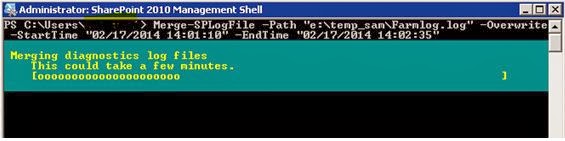
As we know that SharePoint logs are generated in all servers in a farm. So if you would like to find the log for your application issue, you may need to look into the log in all WFE/Index servers. In that case you do not need to open logfile from each server rather you can use Merge-SPLogFile powershell command in one server to get the ULS logs for the entire farm and investigate it.
Example:


Once the logfile got generated and you can open in UlsViewer tool to epen the logfile.
One intersting thing is that you can also filter logfiles by specifying ‘second’ duration in the command. This is really required as thousands of logs got created in a minute.


To know more in details please refer the below link
 

Tuesday, August 14, 2012

Developing Quiz Test Module in OOB of SharePoint


If you have any requirement like you need to organize a quiz/exam test for set of users, then you do not need to develop any custom web part or no need to buy any third party product. Here I am going to explain step-by-step process to develop of a Quiz Test Module in OOB of SharePoint.

         Step 1.  Create a Custom List with some columns as below.
Column Name
Data Type
Default Value
Required
Hide Field
Q1. Which Country has largest population?
Choice Values [INDIA, UK, USA]
[Make it Blank]
Yes
False
A1
Single Line Text
INDIA
No
True
Q2. Which Country is more powerful?
Choice Values [CHINA, JAPAN, USA]
[Make it Blank]
Yes
False
A2
Single Line Text
JAPAN
No
True
Q3. Which Country is rich?
Choice Values [PAKISTAN, INDIA, SRILANKA]
[Make it Blank]
Yes
False
A3
Single Line Text
INDIA
No
True
Q4. Which Country is harvesting rice more?
Choice Values [SA, AUSTRALIA , INDIA]
[Make it Blank]
Yes
False
A4
Single Line Text
INDIA
No
True
Q5. Which Country is strong in Missile Manufacturing?
Choice Values [RUSSIA, INDIA, USA, JAPAN]
[Make it Blank]
Yes
False
A5
Single Line Text
USA
No
False
        Note: Here I created 5 questions and their 5 answers, so in total I created 10 columns for all.
            
             Step 2. Now enable content type for the List and hide the answer fields (A1, A2, A3, A4, and A5).
             Step 3. Now we will create 3 more fields in the same list which are Score, Final Score and Result.
  
Column Name
Data Type
Formula
Returned Data Type
Required
Test Output
Score
Calculated (calculation based on other columns)
=SUM(IF(EXACT([Q1. Which Country has largest population?] ,A1),1,0),IF(EXACT([Q2. Which Country is more powerful?],A2),1,0),IF(EXACT([Q3. Which Country is rich?],A3),1,0),IF(EXACT([Q4. Which Country is harvesting rice more?],A4),1,0),IF(EXACT([Q5. Which Country is strong in Missile Manufacturing?],A5),1,0))
Number
No
1/2/3/4/5
Final Score
Calculated (calculation based on other columns)
=CONCATENATE(Score,"/5")
Single line of text
No
1/5 Or 2/5 Or
3/5 Or
4/5 Or
5/5
Result
Calculated (calculation based on other columns)
=IF(Score>3,"PASS","FAIL")
Single line of text
No
PASS/FAIL
               
         Now if you look at the List Columns which will looks like as below.

           Step 4: Create New Item to start the Quiz Test and the screen will look like below.

           Step 5: Here is the All Users Result Report which you can also customize depending upon your requirement.
     
For individual user’s result which user can see after completing test, for that you can create another view with some filter (Created By = [Me]) and customizing the view and can get like the below output.
      
        Enjoy It !